Capacity Utilization & Pools
Understanding Capacity Utilization in planeus
Capacity utilization helps you compare your available resources with your production needs and shows the results in an easy-to-read chart.
This helps you see at a glance if you have enough capacity — or if you’re risking overloads.
What are Pools?
Everything in planeus capacity planning is built around Pools.
- A Pool is a group of similar Resources, like:
- Employees with the same skills (e.g. electricians, welders)
- Machines with the same capabilities
You can create and manage Pools under Configuration.
Capacity Supply
Your available capacity comes from the resources you’ve assigned to a Pool.
To set this up:
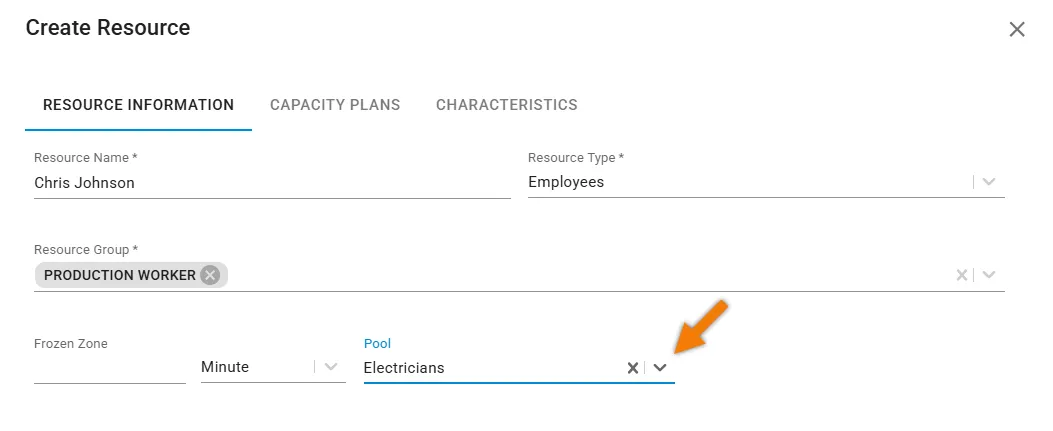
- Go to Master Data > Resources.
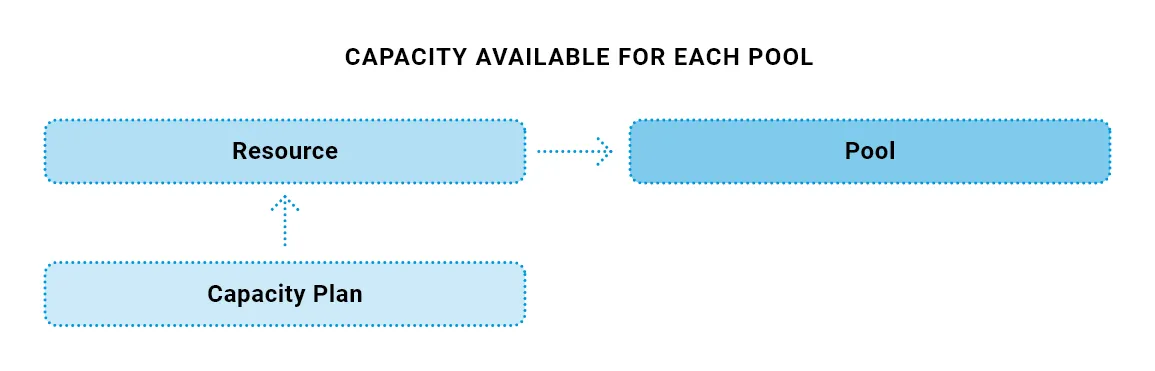
- Assign the Resources to the right Pool.
Capacity Demand
Your required capacity comes from the Technologies linked to your Work Steps.
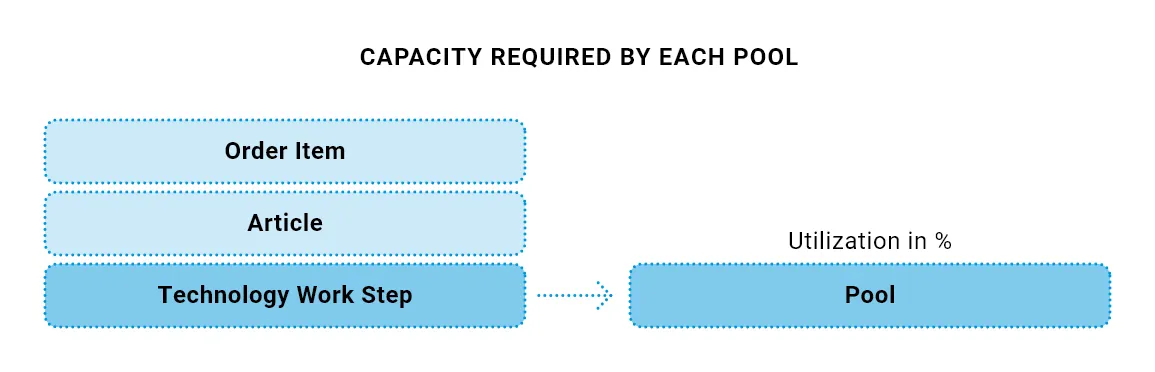
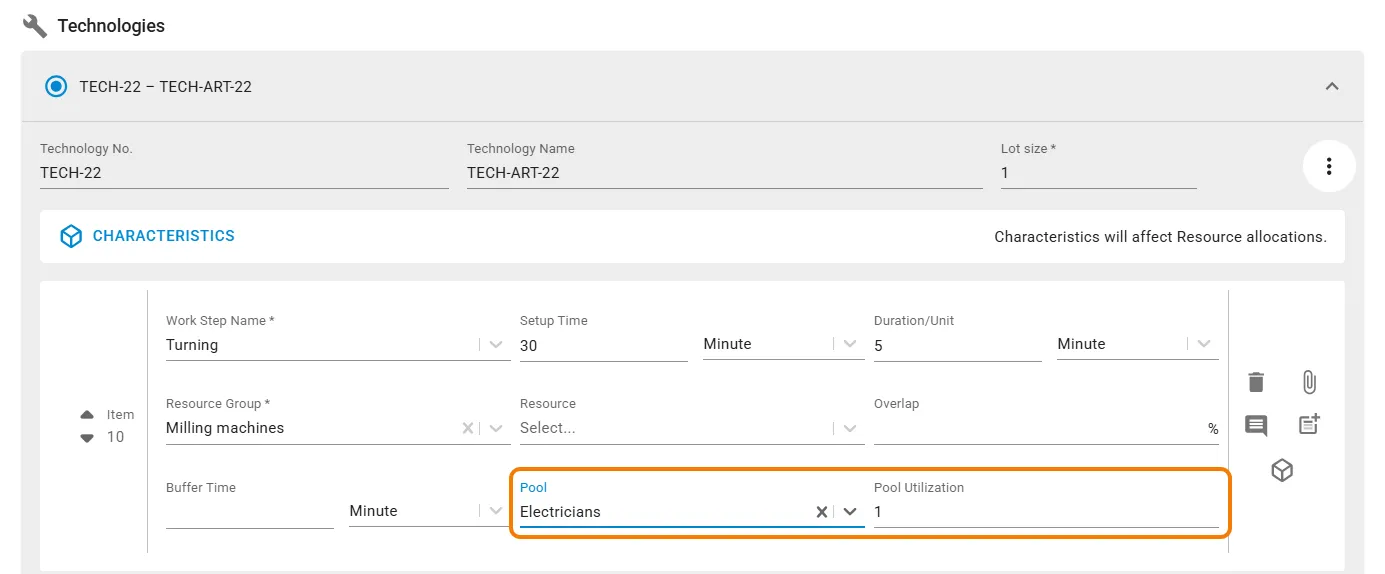
In Technology, you can define:
- How many utilization of the Resources you need from a specific Pool for a particular Work Step.
Example
Imagine you have a Work Step for Injection Molding, you can use Pool to tell planeus:
During this Work Step, I need 2 electricians for the entire duration.”
Then planeus will know how many resources your Work Step will consume from the Pool.
Viewing Capacity Utilization
You can check your Pool Utilization right in the Manufacturing Plan view.
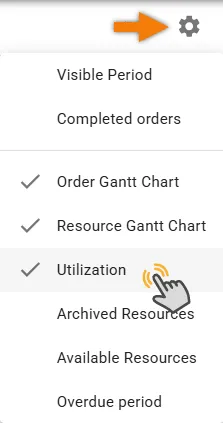
- Click the Utilization menu option in the Manufacturing Plan view.
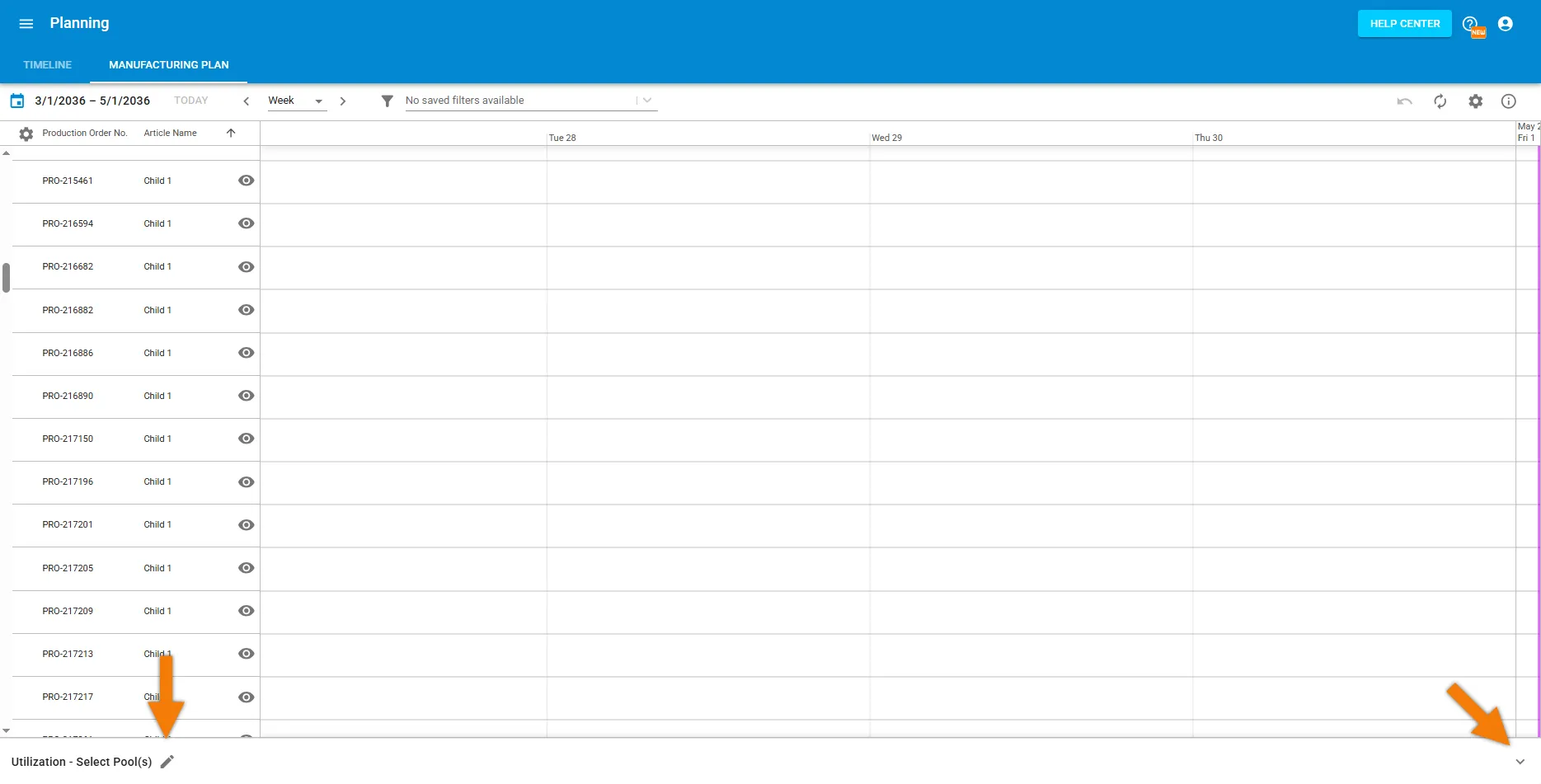
- A bar appears at the bottom of the screen.
- Click the Open icon on the lower right to see the list of available Pools.
- Use the Edit icon on the left to select the pools you want to display.
- You can display up to 6 pools at the same time.
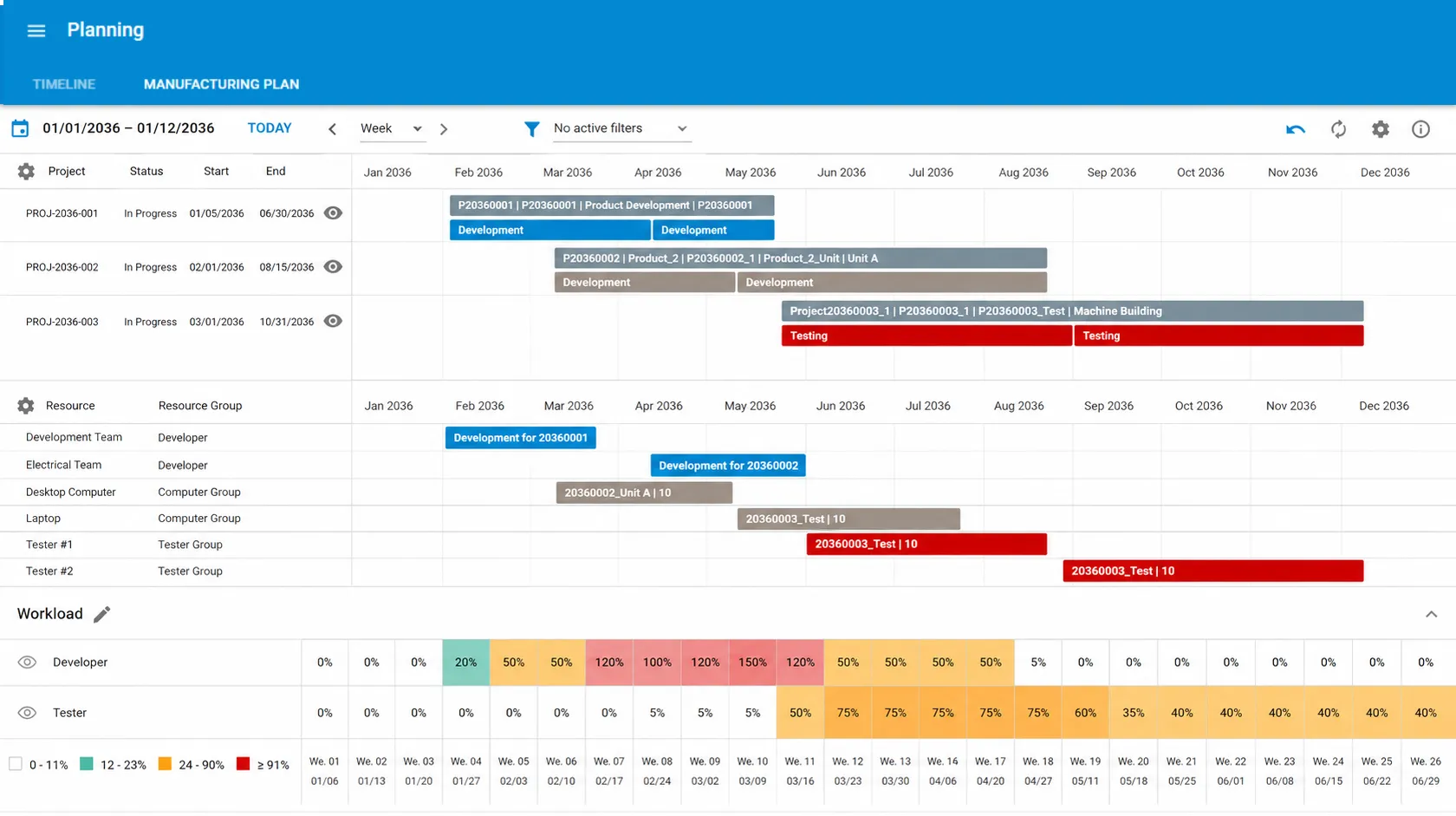
- Choose the Pool you want to check.
- planeus displays a Utilization Chart for that Pool.
- Click the eye icon to open the detailed view for a pool. You can view the details of up to 3 pools at the same time. This helps you compare selected pools side by side without overloading the planning view.
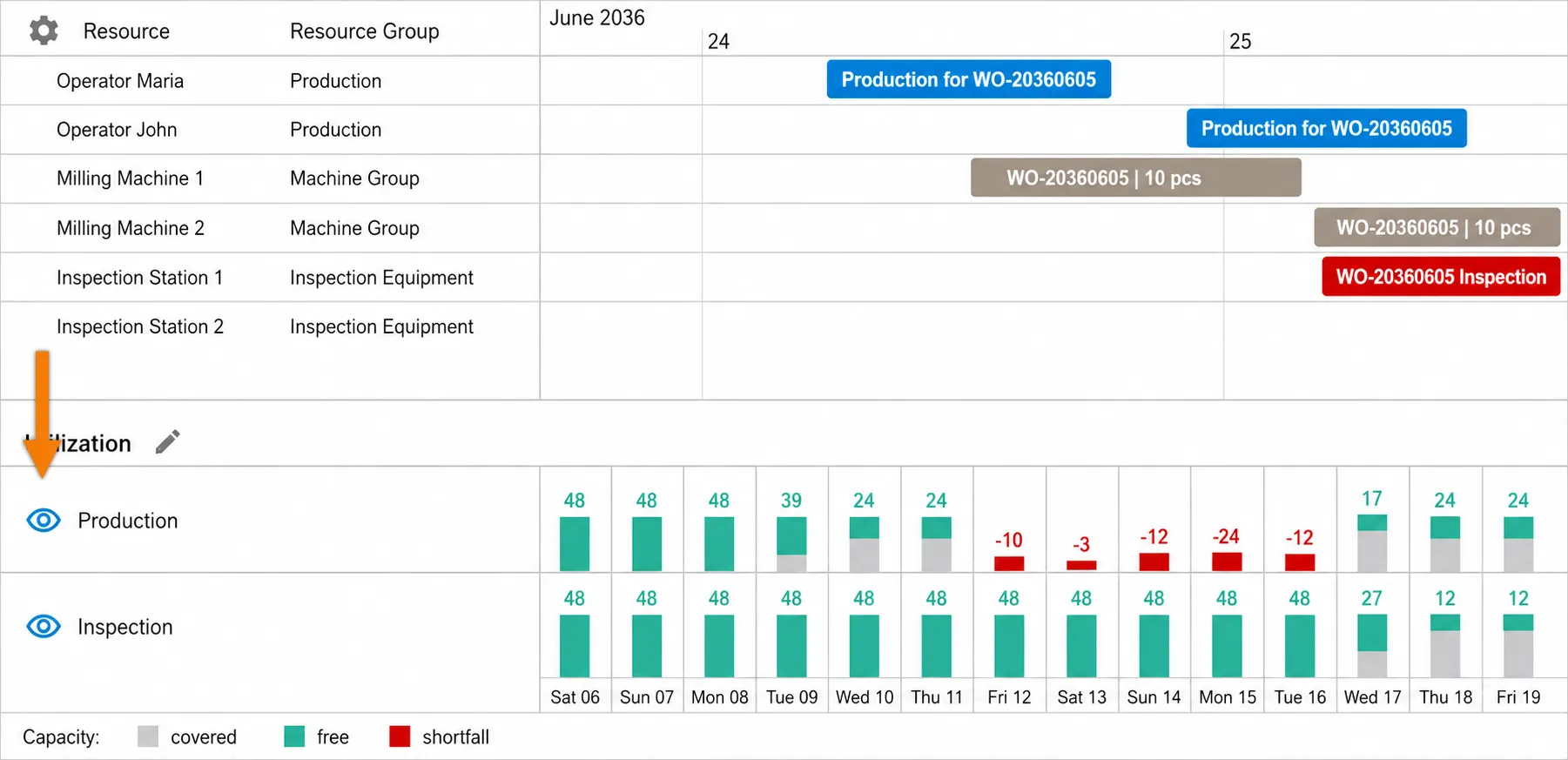
Depending on how you’ve zoomed in or out in the timeline, planeus may show average values for capacity utilization.
Color Coding in the Chart
planeus uses colors to make it easy to spot problem areas. This color coding helps you quickly see:
- Where you have extra capacity
- Where you’re approaching limits
- Where you’re overloaded
Color | Meaning |
|---|---|
🟩 Green | Under 75% utilization |
🟨 Yellow | 75% - 95% utilization |
🟧 Orange | 95% - 105% utilization |
🟥 Red | Over 105% utilization |
Capacity utilization in planeus makes it easy to keep your operations balanced and avoid surprises that could slow down your production.